Windows Command Prompt part 2
Windows Command Prompt part 2: Copy, Move, XCopy, and Delete files & folders safely
In Part 1 we covered navigation (CD) and listing (DIR with wildcards).
Today: copying, moving, and deleting files and folders, the commands I use most for cleaning up and organizing.
All screenshots from my Windows 11 laptop.
COPY – Copy Files
COPY is simple for single files or patterns.
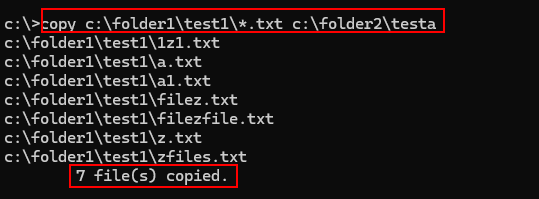
Example: copy all .txt files from one folder to another.
From root (C:>):
COPY c:\folder1\test1*.txt c:\folder2\testa
MOVE – Move (cut & paste) files
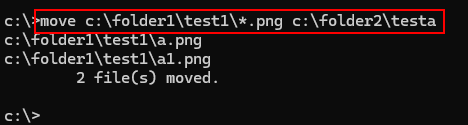
– MOVE does the same as copy but removes from the source.
– MOVE c:\folder1\test1*.png c:\folder2\testa
COPY from current folder
First navigate into the source:
CD folder1
CD test1
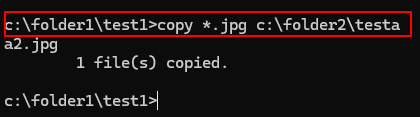
Now shorter:
COPY *.jpg c:\folder2\testa
XCOPY – Copy entire folders
COPY doesn’t copy folders with contents, use XCOPY for that.
XCOPY “C:\folder1\test1\folder3” “C:\folder2\testa\folder3\” /E
/E` copies subfolders, including empty ones
Even if it says 0 File(s) copied when the folder is empty, the structure is created.

Help for any command
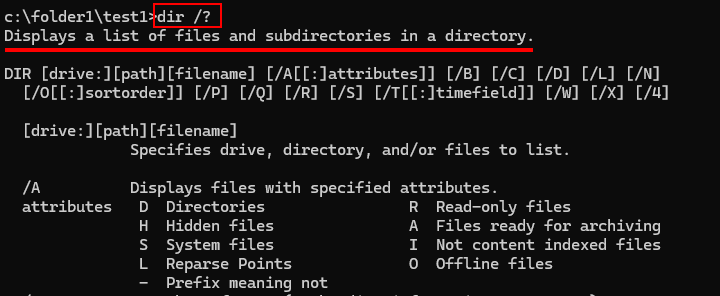
Want all options? Add /?:
XCOPY /?
COPY /?
DELETE files safely
DEL = delete files
Be careful, there is no Recycle Bin!
Delete all PNG files:
DEL *.png
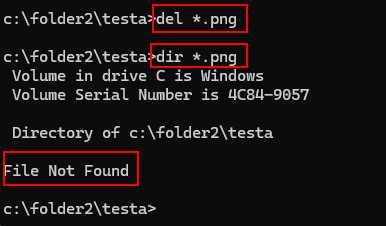
Delete one file with confirmation:
DEL a2.jpg /P
/P asks Are you sure (Y/N)? always use this when learning.

Remove Folders with RD
RD (or RMDIR) removes empty folders:
RD folder3
For non-empty folders: first delete contents, then RD.

My safety rules
Always use /P with DEL when testing.
Double-check current folder with CD before deleting.
Start in a test folder like we did.
What really happens when you MOVE (not COPY)
On the same drive/partition (like both source and destination on C:):
Windows doesn’t copy the data at all.
It simply updates the file system table (NTFS master file table), changes the pointer (directory entry) to the new location.
The actual file data stays exactly where it was on the disk.
That’s why it’s lightning fast, often just milliseconds, no matter how big the file is.
Only when you move across different drives (as from C: to D:):
It has to copy the data to the new drive, then delete the original → much slower (same as a copy operation).
Why CMD feels even faster?
No GUI overhead (no thumbnails, previews, progress bars).
Direct system calls, straight to the file system.
Batch operations fly (like MOVE *.txt newfolder).
This brings us to the end of my post on Windows Command Prompt part 2.
Thank you for taking the time to read my post on Windows Command Prompt part 2.
I hope you found it enjoyable and insightful.
Stay tuned for more content that is coming soon.
If you like what you read, please consider sharing it with others who might find it helpful.
Contact me
If you have any questions or want to contact me, please drop me an email at info@safecomputer.org
Stay updated with my monthly newsletter
Subscribe to Safe Computer’s monthly newsletter in the right sidebar for tips on job applications, cybersecurity, and more! Get summaries of my latest posts, like this Database Crimes, straight to your inbox. Join now at safecomputer.org!
Disclaimer
All tips and methods mentioned in this blog are tested on Windows 11. Please note that results may vary on other operating systems or versions of Windows. Adapt the instructions accordingly.
Copyright
© 2025 Henny Staas/safecomputer.org. Unauthorized use and/or duplication of this material without express and written permission from this site’s author and/or owner is strictly prohibited. Excerpts and links may be used, provided that full and clear credit is given to Henny Staas/safecomputer.org with appropriate and specific direction to the original content.