Windows Command Prompt basics
Windows Command Prompt basics: CD, DIR, and Wildcards (like the old green screen days).
I grew up with massive CRT monitors and glowing green letters on black screens. Typing DIR and watching files scroll by felt like magic.
Today, the Windows Command Prompt (CMD) looks different, black background, white text, but the core commands are the same. And they’re still incredibly useful.
In this post (Part 1), I’ll show you the basics: navigating folders with CD and listing files with DIR (including wildcards). All with real screenshots from my Windows 11 machine.
Part 2 will follow soon.
Let’s start.
Opening the Command Prompt
Press Win + R, type cmd, press Enter.
Or search Command Prompt in the Start menu.
You’ll see something like:
C:\Users\YourName>
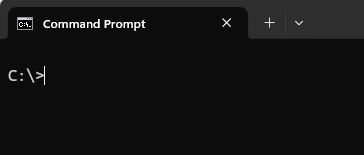
This is your prompt, it shows the current folder.
Navigating with CD
CD = Change Directory.
– CD folder1 → go into folder1.
– CD .. → go up one level.
– CD \ → go to the root of current drive.
– CD \full\path → jump directly.
My test structure:
C:\
├── folder1
│ ├── test1 (files)
│ └── test2
└── folder2
├── testa
└── testb
First, move to the root.
cd\
Now move into folder1 and back.
cd folder1
cd\
Note: when you are in a first level folder, like folder1, you can not use cd.. anymore. It will return an error.
C:\folder1>cd..
‘cd..’ is not recognized as an internal or external command,
operable program or batch file.
To go back to the root folder, you have to use cd\
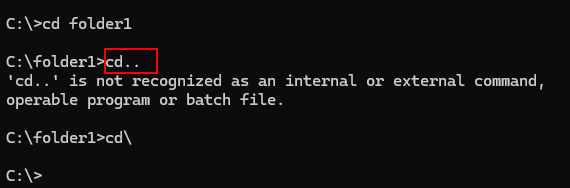
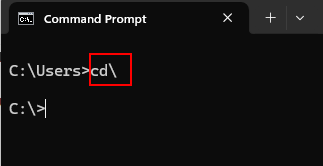
Or directly.
cd \folder1
cd c:\
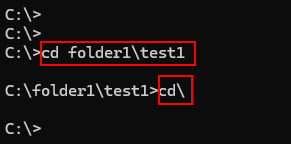
Move directly to a subfolder.
cd c:\folder1\test1
cd \
The TAB key, autocomplete magic
Type the first part of a folder name and press TAB, it completes it!
Example:
cd fol
→ becomes cd folder1
Press TAB again → cd folder2
Saves typing with long names!
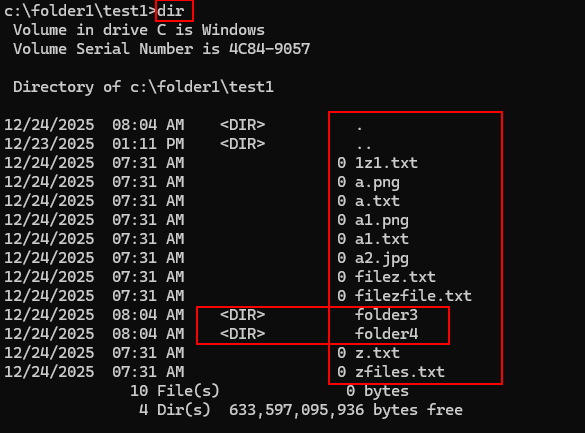
Listing files and folders with DIR
DIR = Directory listing.
DIR
Shows everything in current folder.
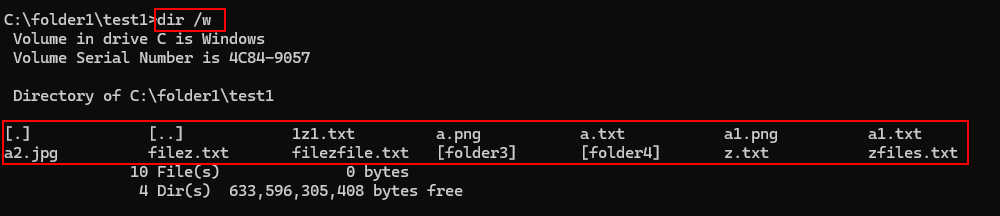
Useful switches:
DIR /p: pause after each screen.
DIR /w: wide format (more per line).
Arrow keys and CLS
– Arrow Up: recall previous commands (keep pressing for older ones).
– Arrow Down: go forward again.
CLS: clear screen for a fresh start.
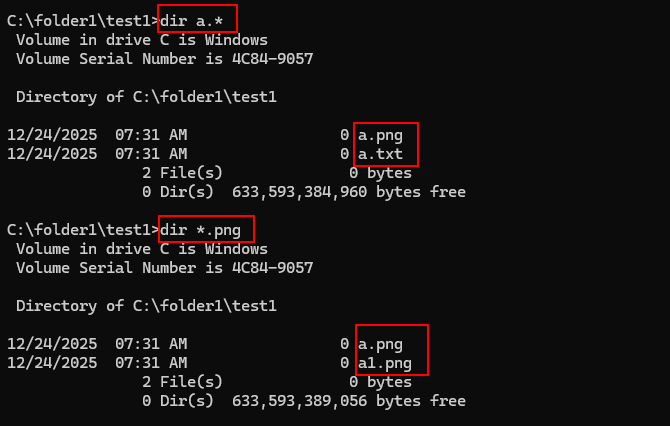
Wildcards, the real power
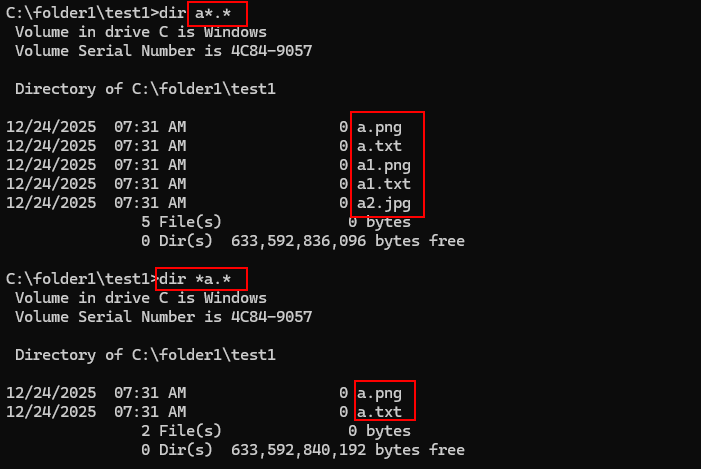
* = any series of characters.
. separates name and extension in file names.
Like filez.txt, photo.png, etc.
– DIR *.* all files (default).
– DIR *.txt only .txt files.
– DIR a*.* files starting with a
– DIR *a.* files ending with a
– DIR *a*.* files containing a anywhere.
Why this still matters.
PowerShell and File Explorer are great, but CMD is:
Lightning fast.
Always available.
Perfect for quick tasks and scripts.
I still use these commands frequently.
Try these basics on your own machine, it’s fun and surprisingly powerful.
More to follow…
This brings us to the end of my post on Windows Command Prompt basics.
Thank you for taking the time to read my post on Windows Command Prompt basics.
I hope you found it enjoyable and insightful.
Stay tuned for more content that is coming soon.
If you like what you read, please consider sharing it with others who might find it helpful.
Contact me
If you have any questions or want to contact me, please drop me an email at info@safecomputer.org
Stay updated with my monthly newsletter
Subscribe to Safe Computer’s monthly newsletter in the right sidebar for tips on job applications, cybersecurity, and more! Get summaries of my latest posts, like this Database Crimes, straight to your inbox. Join now at safecomputer.org!
Disclaimer
All tips and methods mentioned in this blog are tested on Windows 11. Please note that results may vary on other operating systems or versions of Windows. Adapt the instructions accordingly.
Copyright
© 2025 Henny Staas/safecomputer.org. Unauthorized use and/or duplication of this material without express and written permission from this site’s author and/or owner is strictly prohibited. Excerpts and links may be used, provided that full and clear credit is given to Henny Staas/safecomputer.org with appropriate and specific direction to the original content.