Windows 11 App Permissions
The insane list Microsoft hides (and how to lock it down)
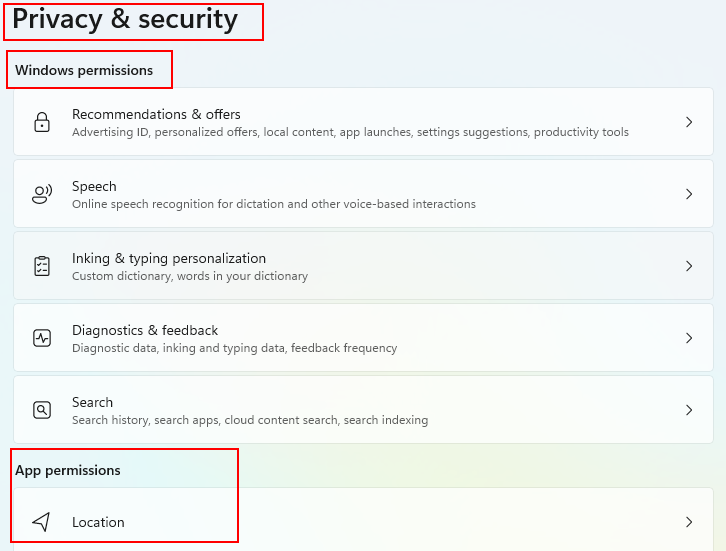
Windows 11 has a massive section called App permissions buried in Settings > Privacy & security. It controls what apps can access on your PC, camera, microphone, location, files, contacts, and many more.
The list is long. Really long. And many of these permissions are On by default for Microsoft apps, while third-party apps often request more than they need.
After 35 years in banking IT, where giving away access to sensitive data was never an option, I go through this list on every new Windows machine.
Here’s what’s in there at the moment, why some are risky, and exactly how to lock them down.
The Near-Full list of app permissions
Under Privacy & security > App permissions, you’ll find:
Account info: name, username, profile picture.
Calendar: read/write events.
Call history: phone call logs (if Phone Link active).
Camera: take photos/video.
Contacts: your address book.
Documents: access Documents folder.
Downloads: access Downloads folder.
Email: read/send emails.
File system: full access to drives/files (very dangerous).
Location: GPS and tracking.
Messaging: read/send SMS.
Microphone: record audio.
Music library: access music files.
Notifications: read your notifications.
Other devices: communicate with nearby Bluetooth devices.
Passkeys: manage hardware security keys.
Phone calls: make calls from PC.
Pictures: access Photos library.
Radios: control Bluetooth/Wi-Fi.
Tasks: access to-do lists.
Videos: access Videos folder.
And more.
You can find the entire list here:
Why this list is concerning
Microsoft added these for convenience:
A weather app needs Location
A video call app needs Camera/Microphone
Phone Link needs Contacts, Messaging, Calls
But:
Many apps request far more than necessary (data harvesting).
Malware loves these, ransomware via File system, spyware via Camera/Mic.
Defaults often allow Microsoft apps full access.
Third-party apps from outside the Store can abuse them silently.
In banking, we locked down everything not explicitly needed. At home, you should too.
My top riskiest permissions)
File system: full drive access. Only allow trusted apps.
Camera & Microphone: spyware goldmine. OFF unless you video call often.
Location: fracking. OFF if you don’t need maps/weather.
Contacts: harvests your address book. Rarely needed.
Account info: gives apps your name/username/photo. Turn OFF.
Notifications: apps can read all your alerts. Privacy risk.
Clipboard: reads everything you copy. Dangerous.
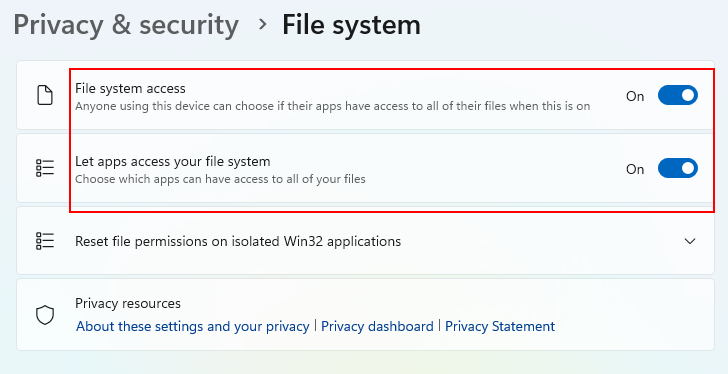
File system permission, one of the scariest.
It is only On for the picture, when Off you can not read the text.
But why would you turn it Off?
Let us take a look at something simple, Account info. This setting allows approved apps to access basic details from your user account, such as:
Your display name (the full name shown in Windows)
Username (your login name)
Profile picture
Sometimes your account type (local or Microsoft account) or basic ID info
Sometimes even more? I don’t know.
What does Microsoft say? The official description is brief: access any of your account info. But, where can you see exactly what data is shared? Well, I have no idea. There is not a preview or list of the exact data an app can access.
My advice (from Banking IT xxperience).
Turn Let apps access your account info OFF globally unless a specific trusted app needs it.
Few apps truly require your name/photo, it’s mostly for convenience/data collection.
The bottom line is: if you don’t know what you are sharing, and why, turn it Off.
If you want more control, use a local account instead of Microsoft, less account info to share.
How to lock It down
Open Settings (Win + I) → Privacy & security.
Scroll down to App permissions.
Click each category.
Turn Let apps access… OFF globally (unless you need it).
For anything left ON, review the per-app list and deny suspicious ones.
No downside, legitimate apps will prompt when they truly need access.
My personal rule
I turn everything OFF first.
Then I only allow what I actively use (as Camera for Teams).
It takes 10 minutes and gives huge peace of mind.
Final thought
Windows 11 gives you more control than most people realize, but Microsoft buries it deep and defaults to allow.
Take 10 minutes today to go through App permissions. Your future self will thank you.
This brings us to the end of my post on Monitoring PostgreSQL activity.
Thank you for taking the time to read my post on Monitoring PostgreSQL activity.
I hope you found it enjoyable and insightful.
Stay tuned for more content that is coming soon.
If you like what you read, please consider sharing it with others who might find it helpful.
Contact me
If you have any questions or want to contact me, please drop me an email at info@safecomputer.org
Stay updated with my monthly newsletter
Subscribe to Safe Computer’s monthly newsletter in the right sidebar for tips on job applications, cybersecurity, and more! Get summaries of my latest posts, like this Database Crimes, straight to your inbox. Join now at safecomputer.org!
Disclaimer
All tips and methods mentioned in this blog are tested on Windows 11. Please note that results may vary on other operating systems or versions of Windows. Adapt the instructions accordingly.
Copyright
© 2025 Henny Staas/safecomputer.org. Unauthorized use and/or duplication of this material without express and written permission from this site’s author and/or owner is strictly prohibited. Excerpts and links may be used, provided that full and clear credit is given to Henny Staas/safecomputer.org with appropriate and specific direction to the original content.