Windows 11 Clipboard Sync
Windows 11 Clipboard Sync: the feature that uploads everything you copy.
Windows 11 has a handy feature called Clipboard History, it lets you see and reuse things you’ve copied recently.
But there’s a catch most people miss:
Cloud sync is ON by default.
That means everything you copy, passwords, bank details, private messages, addresses, it all gets uploaded to Microsoft’s servers and synced across your devices.
Yes, really.
I discovered this on a new banking laptop. After 35 years in Banking IT where data leaving the building was a big no-no, I turned it off immediately.
Here’s why it matters, and how to disable it in 10 seconds.
What exactly happens
When Clipboard History + Sync is enabled:
Every time you copy text (Ctrl + C), it’s saved locally.
With sync ON, it’s also uploaded to your Microsoft account.
Available on any signed-in Windows device (or even Phone Link).
Microsoft says it’s encrypted and private, but do you really want your copied passwords or sensitive info on their servers?
How to turn It Off (in 10 seconds)
Open Settings.
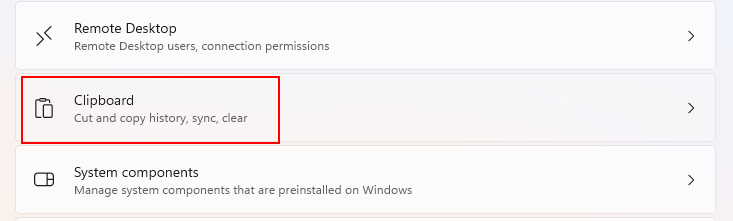
Go to System > Clipboard.
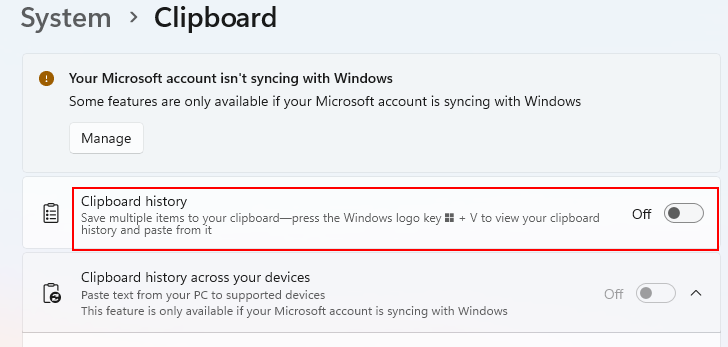
Turn OFF Clipboard history.
Turn OFF Sync across your devices.
That’s it.
No more local history (if you turn history off) and nothing gets uploaded.
If you like the history feature but hate sync:
Leave Clipboard history ON
Turn only Sync across your devices OFF
My rule
On every new Windows machine (personal or work), this is one of the first things I disable, right after telemetry settings.
In banking, we never allowed clipboard data to leave the device. At home, I apply the same rule.
Clear existing history
While you’re there:
Click Clear clipboard data → Clear
Wipes anything already saved.
One more important reason to turn it Off
If you ever share your computer or laptop with someone else without logging off (family member, colleague, etc.), the next person can open Clipboard History (Win + V) and see everything you’ve copied recently.
Passwords, messages, account numbers, all right there.
Turn it off for that reason alone if privacy matters to you.
Final thought
Convenience features are great, until they quietly send your private copied text to the cloud.
Take 10 seconds today to check your clipboard settings.
Your future self (and your privacy) will thank you.
Do you use Clipboard History? Sync on or off? Let me know in the comments!
This brings us to the end of my post on Windows 11 Clipboard Sync
Thank you for taking the time to read my post on Windows 11 Clipboard Sync.
I hope you found it enjoyable and insightful.
Stay tuned for more content that is coming soon.
If you like what you read, please consider sharing it with others who might find it helpful.
Contact me
If you have any questions or want to contact me, please drop me an email at info@safecomputer.org
Stay updated with my monthly newsletter
Subscribe to Safe Computer’s monthly newsletter in the right sidebar for tips on job applications, cybersecurity, and more! Get summaries of my latest posts, like this Database Crimes, straight to your inbox. Join now at safecomputer.org!
Disclaimer
All tips and methods mentioned in this blog are tested on Windows 11. Please note that results may vary on other operating systems or versions of Windows. Adapt the instructions accordingly.
Copyright
© 2025 Henny Staas/safecomputer.org. Unauthorized use and/or duplication of this material without express and written permission from this site’s author and/or owner is strictly prohibited. Excerpts and links may be used, provided that full and clear credit is given to Henny Staas/safecomputer.org with appropriate and specific direction to the original content.